Turn Off Autoplay Previews Before They Spoil Your Next Show
Netflix can honor one profile setting across devices, while several rivals leave controls tied to a TV, phone, or operating system. Here is the quietest setup available.
Streaming · August 11, 2026 · 8 min read
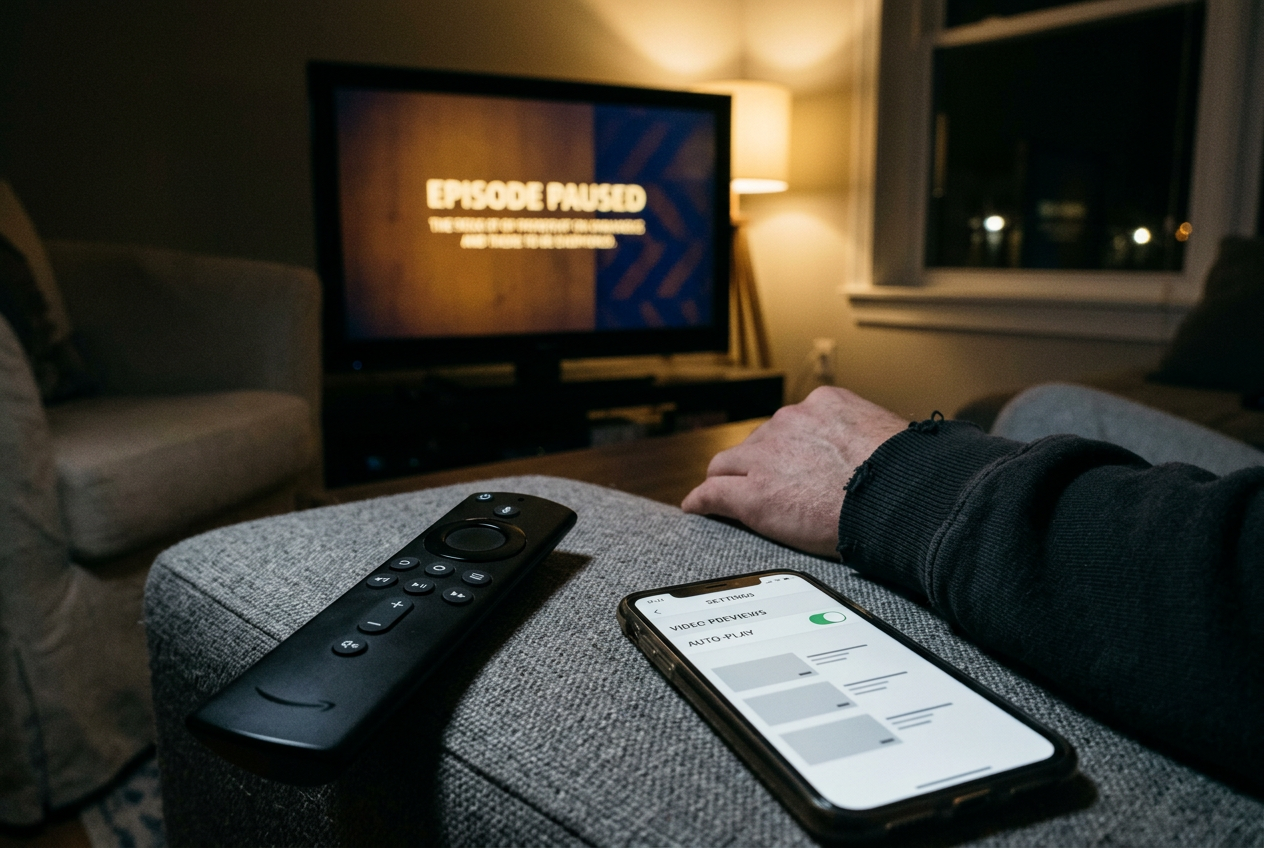
Open Netflix to look up The Night Agent, pause on its tile while reading the episode count, and the decision can begin without you. Motion fills the frame. Dialogue starts. A compressed run of confrontations replaces the synopsis you meant to read.
That is an autoplay preview, meaning promotional video that starts while you browse without a deliberate press of the play button. It belongs to streaming coverage, although the nuisance reaches beyond television: the person comparing a series with a movie is still being pushed from browsing into watching before choosing either one.
The problem is larger than noise. A preview can disclose a returning character, show two characters in the same location, or reveal the visual scale of a scene that the episode spends an hour approaching. Even where no major plot turn appears, the edit supplies information about pace and emphasis. A character reaction placed after an explosion implies a connection that may not exist in the finished sequence.
It also starts a persuasion loop, the repeated cycle in which movement and sound hold attention long enough for another preview to begin. The loop works best when the viewer remains still. That makes the ordinary pause on The Night Agent especially useful as a test: after changing a setting, return to the same kind of tile, wait, and confirm that nothing moves or speaks.
Start with the control that travels
Netflix offers the clearest profile-level switch. In a web browser, open Account, choose the relevant profile under Profile & Parental Controls, enter Playback settings, and clear “Autoplay previews while browsing on all devices.” Save the change. The wording matters because this control is attached to the profile rather than the television currently in front of you.
Repeat it for every profile that needs quiet browsing. A household profile and a personal profile can behave differently, even on the same TV, and a children’s profile should not be assumed to inherit the choice made elsewhere. Netflix notes that a device may need a refresh before the new preference appears; switching profiles, restarting the app, or signing out and back in can force that update.
Do not confuse preview autoplay with the nearby option for automatically playing the next episode. The first changes browsing. The second changes what happens after an episode ends. Turning off both produces the quietest and most deliberate setup, but viewers who like continuous episodes can disable previews without giving up the next-episode countdown.
Now repeat the Night Agent test. Stop on the title without opening its detail page. Wait longer than feels necessary. If the art remains still, the setting has reached that device; if dialogue begins, treat the client as unsynced rather than assuming the account switch failed everywhere.
Disney+ and Max put the switch closer to the profile
Disney+ separates “Autoplay” from “Background Video” within Edit Profiles. Autoplay governs the handoff into another episode. Background Video is the relevant setting for motion and promotional playback while navigating supported versions of the app. Select each profile, switch Background Video off, save, and then check the devices used by that profile.
The qualification is important. Disney+ has not presented every control identically on every client, and older or less frequently updated TV apps may omit a label that appears on mobile or web. Changing the profile where the switch is visible is better than hunting through a television’s menus, but it does not remove the need to verify the result on the television.
Max places available playback controls under the profile’s Settings or Playback area, with labels and availability varying by device version. Where “Autoplay previews” or “Preview autoplay” appears, switch it off separately from next-episode autoplay. If the option is absent, updating the app is worth doing before concluding that the device does not support it.
These profile-adjacent controls are preferable to muting the TV because they stop the visual interruption as well as the sound. Muting leaves the edit intact, and that edit can carry the spoiler: an unexpected face, a costume change, or a location is enough. A silent preview remains a preview.
Prime Video has two different layers
Prime Video illustrates why one switch rarely settles the matter. Its in-app Auto Play setting, found through the profile or settings area on supported mobile, web, and TV versions, can control automatic playback behavior on that client. The exact labels differ, and some versions emphasize the next title rather than browse trailers, so the only reliable confirmation is the pause-on-a-tile test after changing it.
Fire TV adds another layer outside Prime Video. The operating system’s home screen contains Featured Content, which can start promotional video before the Prime Video app opens. Under Fire TV Settings, go to Preferences, then Featured Content, and turn off both Allow Video Autoplay and Allow Audio Autoplay. Disabling only the audio option creates a quieter home screen but still permits motion and visual spoilers.
This distinction catches people because the Fire TV home screen and the Prime Video app share Amazon branding while obeying different controls. One preference belongs to the streaming service; the other belongs to the device launcher, meaning the screen that organizes apps and promoted titles. Change both.
A similar split can appear on smart televisions whose own home screens play highlighted trailers. Those promotions are controlled by the television platform, not Netflix, Disney+, or Max. Look in Home Screen, Featured Content, Privacy, or Advertising settings, although manufacturers use different names and may offer only a mute option rather than a full stop.
Apple devices offer a useful system-level brake
On Apple TV hardware, open Settings, then Accessibility, then Motion, and turn off Auto-Play Video Previews. “Reduce Motion” is a separate accessibility control that limits interface movement; it can make navigation calmer, but the specifically named preview switch is the one aimed at automatically playing promotional video.
iPhone and iPad place Auto-Play Video Previews under Settings, Accessibility, Motion. The available choices can include allowing previews, restricting them by connection, or turning them off. This is a device-level preference. Changing it on a phone does not reconfigure an Apple TV in the living room, even when both use the same Apple Account.
The Apple TV app also has its own playback behavior, including whether another episode begins automatically. Keep the categories straight: system preview settings govern promotional motion in supported interfaces, while app playback settings govern the transition after a selected program has started.
This system-level brake is useful when an individual streaming app exposes no dedicated browse-preview control. It is not guaranteed to override every third-party design, but it gives the operating system permission to suppress previews that respect the preference, without requiring the viewer to find the same concept under several brand-specific labels.
Some apps still offer only partial control
Hulu, Paramount+, and Peacock have exposed autoplay controls unevenly across platforms, with many versions focusing on what plays after a selected episode rather than what moves during browsing. A switch labeled Autoplay may therefore stop the next episode while leaving home-screen promotion unchanged. Read the explanatory text beside the setting and verify it on the browse screen.
Where no dedicated preview switch appears, the practical fallback is narrower. Turn off next-episode autoplay, disable video-preview motion at the phone or TV operating-system level where possible, and keep the device muted during browsing. On a computer, muting the browser tab blocks surprise dialogue, though it does nothing about images. None of these is as good as a true off switch.
Downloading an episode before opening its series page can also reduce exposure when traveling or catching up on a spoiler-sensitive show. Use search, open the episode list, start the download, and leave the detail page rather than lingering over promotional modules. That costs a little more navigation but less attention than waiting through a trailer to reach the same button.
Build a spoiler-safe browsing routine
Settings move, app updates reset behavior, and televisions retain old clients for a long time. A durable routine matters more than memorizing one menu path.
First, change account or profile controls on the web, where labels are usually easiest to read. Then inspect every device used for browsing, including the television’s home screen rather than only its streaming apps. Finally, test with a familiar title whose marketing cannot spoil anything for you. The Night Agent tile is useful only if you already know the material; otherwise choose a completed series or movie you have seen.
Keep separate notes for profile-wide and device-only choices. “Netflix profile” means the preference should follow that profile. “Fire TV Featured Content” means every Fire TV needs attention. “iPhone Motion” means the phone is configured, not the tablet beside it.
This small distinction prevents the common failure in which the living-room screen stays quiet while a bedroom TV resumes the same preview loop.
Parents should check children’s profiles independently, especially after creating a new one. Travelers should check mobile settings after reinstalling an app. Anyone avoiding spoilers for a weekly series should browse through search rather than the personalized home page, where promotional rows can change as new episodes arrive.
The aim is not to remove trailers. A trailer chosen from a detail page can help decide whether a show’s tone, performance style, or visual scale suits the evening. The useful boundary is consent: press play for the sales pitch when you want it, rather than letting a two-second pause make that choice.
Questions people ask
Does turning off Netflix previews affect every device?
Netflix describes its preview preference as applying on all devices, but it is tied to an individual profile. Change every relevant profile, then refresh or restart devices that continue playing previews. The next-episode autoplay option is separate and can remain on.
Why does
Prime Video stay quiet while the Fire TV home screen still plays trailers?
They use different settings. Prime Video controls behavior inside its app, while Fire TV’s Featured Content controls promotions on the device home screen. Open Fire TV Settings, then Preferences and Featured Content, and disable both video and audio autoplay.
Can muting autoplay previews prevent spoilers?
It prevents dialogue and music from revealing information, but the pictures can still expose characters, locations, costumes, or the scale of a later sequence. A preview-off control is better; system motion settings and tab muting are fallback measures when an app provides no full switch.
Will turning off previews also stop the next episode?
Usually not. Streaming services commonly separate browse previews from post-episode autoplay, although wording differs by app and device. Read the description beside each switch, keep next-episode autoplay if you value continuous viewing, and verify the preview setting by waiting on a familiar title tile.
One update a day
Today's review, in your inbox
One review each morning — no hype, no filler, just what is worth watching.