
Your TV Makes Movies Look Like Sports. Turn This Setting Off
Motion smoothing invents frames that films never had, giving drama the cadence of a broadcast. Here is the quickest brand-neutral route to disable it without upsetting the rest of your setup.
Streaming · August 11, 2026 · 7 min read
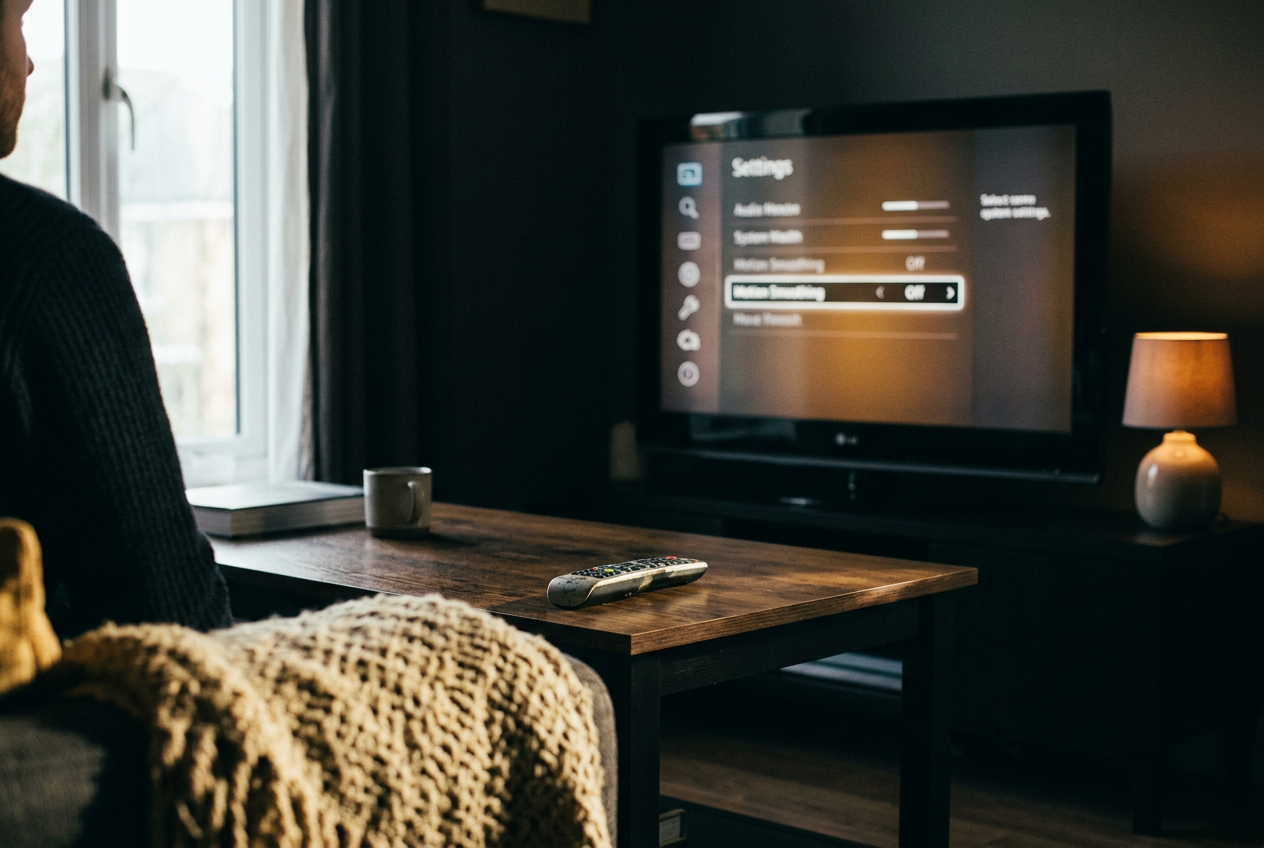
Take the early trench walk in 1917. Two soldiers move from open countryside into a crowded channel of mud, timber, uniforms, and passing bodies, while the camera follows with the continuity of one unbroken journey. On a TV with aggressive motion smoothing, that carefully controlled movement can acquire the hard, exposed clarity of a live sideline broadcast.
The costumes have not changed. Neither has the lighting. Your television is changing the timing between recorded images.
This is a streaming and at-home viewing problem, whether the movie comes from an app, a disc, or a cable channel. The following walkthrough discusses no plot turns from 1917; its opening movement is only a practical test scene that makes the setting easy to spot.
The television is inventing frames
Most narrative films are presented at 24 frames per second, meaning the screen receives 24 distinct images for each second of the movie. Many modern televisions refresh their panels far more frequently than that, but repeating each film frame is different from creating a new one.
Motion smoothing, meaning frame interpolation that invents intermediate images, estimates where an object is moving and constructs extra frames between the originals. If a helmet shifts from one position to another, the television calculates where it might appear in the fraction of a second that the movie never photographed. The resulting motion looks more continuous.
That continuity can be useful. It can also change the texture of a film so thoroughly that an expensive production resembles studio video, live sports, or behind-the-scenes footage. The familiar label “soap opera effect” comes from the historically different motion cadence of television production, though the current problem reaches well beyond soap operas.
The effect becomes conspicuous in 1917 because the opening passage depends on measured camera movement and layers of people crossing one another. Interpolation has to follow the central soldiers while accounting for shoulders, rifles, helmets, trench edges, and figures entering or leaving the frame. When its guesses fail, it can produce artifacts, meaning visible processing errors such as halos, doubled edges, or brief distortions around moving objects.
Even when the algorithm guesses correctly, the scene may still feel wrong. Film motion contains a slight stepping quality during movement, especially in lateral pans, and viewers have learned to read that cadence as part of photographed cinema. Smoothing removes some of that separation, making sets and performances appear more immediate than the filmmakers’ captured images.
The fastest brand-neutral route to turn it off
Start the movie before opening the settings menu. A television may expose different controls depending on whether it is receiving an app, an HDMI device, live television, or a game console, so changing the picture while the relevant source is active reduces the chance that you adjust the wrong input.
Press the remote button labeled Settings, Menu, or a gear icon. Follow the closest available route to:
**Picture or Display
Advanced, Expert, Clarity, or Motion settings
Motion interpolation or Motion enhancement
Off**
Manufacturers use proprietary labels, but the useful words usually include motion, smooth, clarity, interpolation, judder, blur, or enhancement. Ignore a setting that only describes the panel’s refresh rate, which is generally a hardware specification rather than the interpolation control you need. Look for a switch, preset, or pair of sliders that changes how moving images are processed.
If the menu offers separate controls for blur reduction and judder reduction, set the interpolation-related control to zero or off. Judder is the uneven appearance that can occur when film frames are displayed on a television with a different refresh pattern. Some sets group interpolation under judder reduction even though the slider may also affect motion character more broadly.
Now close the menu and replay part of the 1917 trench walk. Watch the edges of the soldiers as other bodies pass behind or in front of them, then notice the camera’s movement along the trench wall. The image may seem less glassy and slightly less fluid after smoothing is disabled. That is expected.
You are seeing the recorded cadence rather than frames generated by the television.
A Filmmaker Mode or similarly named cinema preset can provide a shortcut because such modes often suppress motion processing and other embellishments. It is still worth checking the motion submenu afterward. Picture modes vary by television and source, while a household member, software update, or input change can leave one app smoothed and another untouched.
Do not use Game Mode as the default movie fix unless you also need reduced controller delay. It often cuts image processing to lower latency, but it may change brightness controls, color behavior, or local dimming. Turning off interpolation inside a cinema-oriented picture mode is the narrower adjustment.
Check the source that you use, not every menu at once
Televisions often remember picture settings separately. An internal streaming app may use one profile, an HDMI streaming box another, and high dynamic range playback another still. High dynamic range, usually shown as HDR, is a format that carries a wider range between dark and bright picture information; starting an HDR movie can cause the television to load an HDR-specific version of the selected picture mode.
That explains the common experience of disabling smoothing, opening a different movie, and finding that the sports-like appearance has returned. Repeat the check while playing representative material in each format you regularly use. You do not need to inspect every service. Test the internal app or external player used for most movies, then check an HDR title if the television treats HDR separately.
Streaming services generally do not control the television’s interpolation setting. Changing an app’s video quality, subtitle style, playback speed, or audio options will not remove motion smoothing generated by the display. Leave subtitles and sound settings alone unless they have their own problem; the relevant adjustment sits in the TV’s picture menu.
If the entire image still looks unnaturally sharp after interpolation is off, reduce controls labeled sharpness, detail enhancement, or edge enhancement. Those settings do not invent frames, but excessive edge processing can preserve the same brittle impression around faces, costumes, and production design. Make one change at a time, since replacing an overprocessed picture with an arbitrarily dim or soft one solves a different problem.
Some screens benefit from a smaller correction
Turning interpolation off is a strong default for movies and scripted series, not a rule that has to govern every program. Sports broadcasts are usually captured at a higher frame rate than film, and a restrained motion setting can make a fast camera pan or a moving ball easier to follow. The tradeoff is fewer distracting processing errors against smoother tracking, so a low setting may be more useful than the maximum preset sold under an energetic name.
Viewer comfort matters too. Some people find low-frame-rate pans unpleasant, struggle to track motion, or prefer the stability that interpolation adds. There is no prize for preserving film cadence at the expense of being able to follow the image. Start at off, raise the motion control one step, and stop when movement becomes comfortable rather than pushing the slider to its strongest setting.
Separate profiles make that compromise manageable. Keep a cinema picture mode with interpolation disabled for films and scripted shows, then use a standard or sports profile with modest smoothing for broadcasts that benefit from it. Switching modes costs a few remote presses and avoids recalibrating individual sliders every time.
The 1917 scene remains a useful boundary test. At off, the camera’s progress should retain the slight cadence associated with film while helmets and shoulders keep clean outlines. At a low setting, movement may become easier to track without looking fully broadcast-like. Once faces appear detached from the environment or passing bodies develop rippling edges, the television is doing more than the scene needs.
Questions people ask
Why does motion smoothing turn itself back on?
Your television may store separate picture profiles for internal apps, HDMI inputs, standard video, and HDR. Change the setting while the troublesome movie is playing, then check the active picture mode. A software update or factory reset can also restore default processing, so revisit the motion submenu if the effect returns across every source.
Is motion smoothing the same as a high refresh rate?
No. Refresh rate describes how often the panel can update its image, while motion smoothing creates intermediate frames that were not in the source. A high-refresh-rate panel can display film without interpolation. The setting to disable usually mentions motion, smoothing, interpolation, judder, clarity, or enhancement rather than the panel’s advertised frequency.
Should motion smoothing always be off for movies?
Off is the most reliable starting point because it preserves the movie’s captured cadence and avoids interpolation errors. A low setting may suit viewers who find film pans uncomfortable or have difficulty tracking movement. Make the choice by replaying a demanding passage, such as the opening trench movement in 1917, rather than judging a static menu screen.
Will turning off motion smoothing affect subtitles or sound?
It should not disable subtitles or alter the selected soundtrack because those controls belong to the app, player, or audio menu. Picture processing can add delay on some setups, so removing it may change timing behavior slightly. If dialogue or captions appear out of sync afterward, check the television or sound system’s lip-sync control separately.
One update a day
Today's review, in your inbox
One review each morning — no hype, no filler, just what is worth watching.